


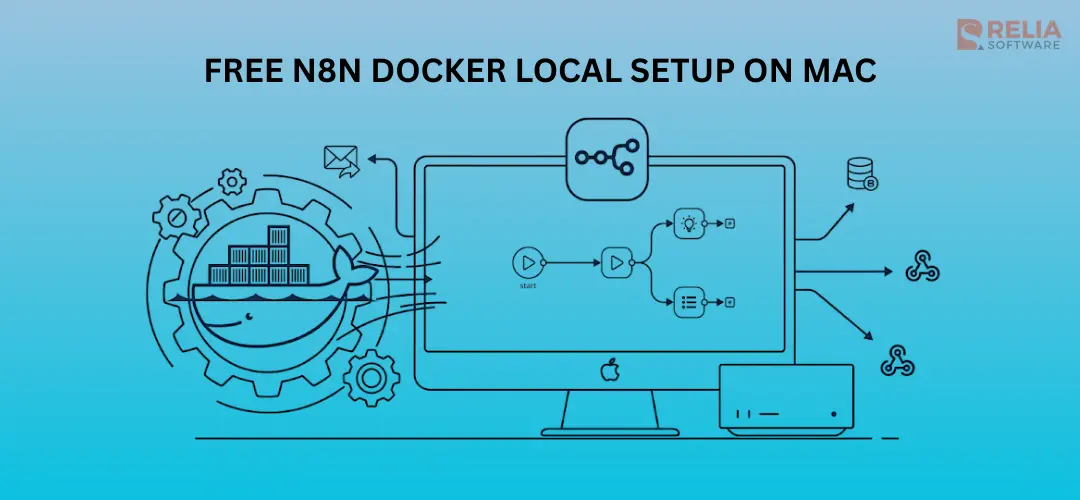
N8N is an open-source workflow automation tool that helps you connect different multiple applications together inside the workflows. This platform does not require you to write any code, it offers you a visual drag-and-drop interface, supporting more than 200 different application integrations. It can be called a one-stop solution for non-technical people to synthesize the whole digital world into one single place.
Each application connection/action is called a node, such as sending an email or updating data. Multiple nodes can be connected using actions, or tools, or being processed by AI Agents. N8n marketplace also offers others’ deployment-ready templates of how they use it in their business use cases.
Because it is an easy-to-use powerful workflow automation tool, enterprises can find no difficulty to optimize their marketing and operational processes without investing heavily in complex AI products.
N8n offers us two approaches to using it.
- We can use n8n at their website: https://n8n.io/ with a free trial duration of 14 days. After that, we can continue using it by purchasing their n8n cloud services.
- Thanks to its open-source option, we can run it locally or host it ourselves and use all its features for free.
In the following sections, you will learn how to install Docker and set up your local environment to run the n8n hosting in your machine, which is the second option.
Prerequisites
Before diving in, ensure your Mac is ready. The following list demonstrates everything you need to complete this blog guide.
-
Hardware/Software:
-
A Mac running macOS 10.15 or later.
-
At least 4GB of RAM (8GB recommended for smooth performance).
-
An internet connection for downloading Docker and n8n.
-
No prior experience needed: I will guide you through everything.
Install Docker Desktop
Firstly, please download the latest version of Docker. You can do this in two ways.
The first option is to use the installer from Docker’s website.
- Go to the official website and choose the suitable version for your machine: https://www.docker.com/products/docker-desktop/
- Click on the button “Download for Mac …” to get the installer.
- Open the
.dmgfile. (typically, it is downloaded and saved in the Downloads folder) - Drag the Docker icon to your Applications folder.
- Open Docker from Applications. It might ask for your Mac password to install helpers, enter it and allow.
- Docker will start up. You'll see a whale icon in your menu bar. If it asks to sign in, you can skip or create a free account (not required for this).
The second option is using the Homebrew installation method.
- Go to the Homebrew page for Docker: https://formulae.brew.sh/formula/docker
- Copy the installation command and open a terminal window.
- Paste the command into the terminal window and wait for the completion.
- Open Docker in a similar way as the above method or using the spotlight command.
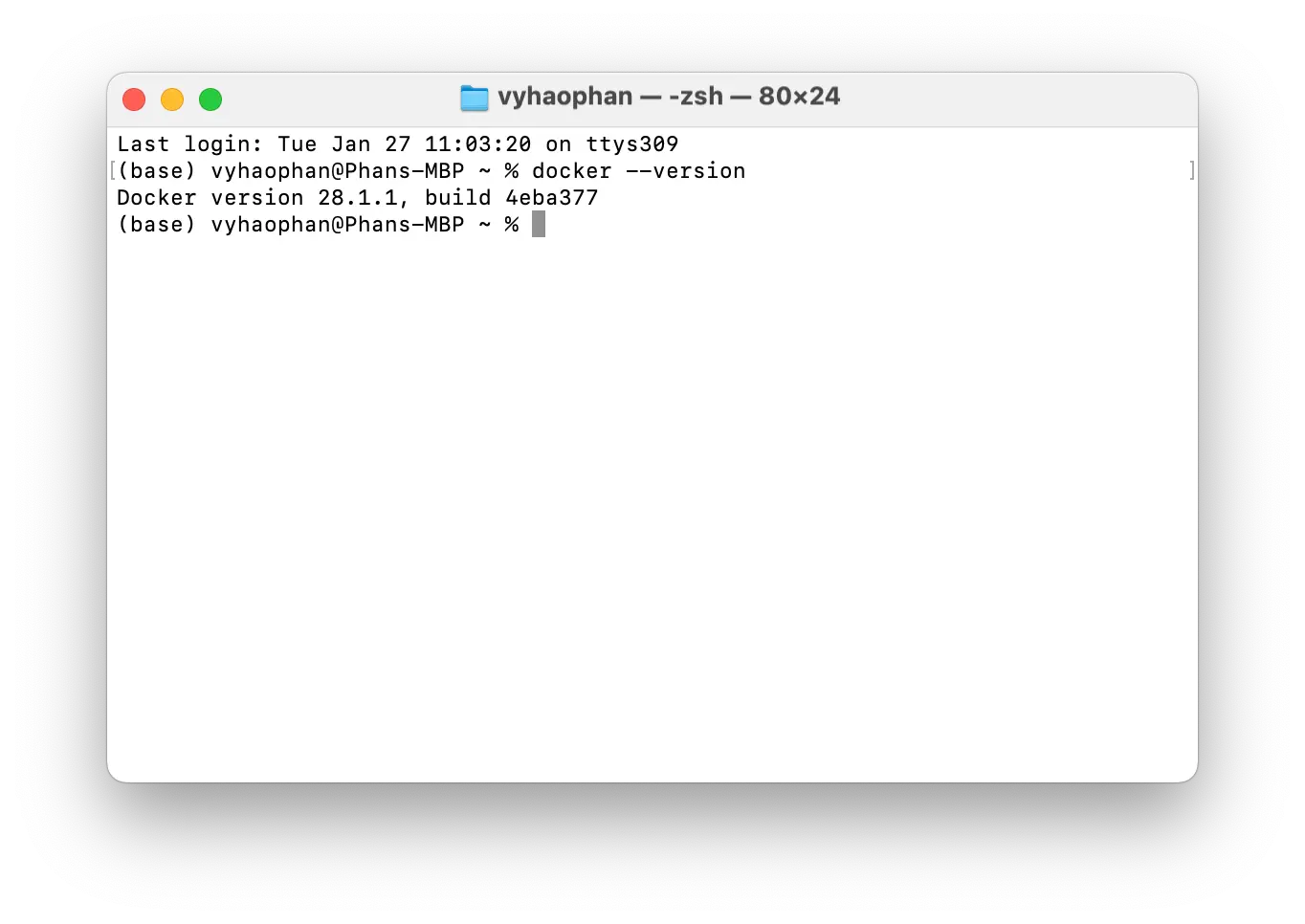
Then, verify installation:
- Open Spotlight (Cmd + Space), type "Terminal," and open it.
- In Terminal, type:
docker --version - You should see something like "Docker version x.x.x". If not, restart Docker or your Mac.
Tip: If Docker won't start, check System Settings > Security & Privacy > General for any blocked items and allow them.
Install n8n with Docker
Prepare your n8n data folder
This step is recommended, and optional, you do not have to follow this step, but a dedicated n8n data folder helps store all the n8n data and keep your automations persistent even if your local machine restarts.
- Open your terminal. Do this by opening the spotlight (Cmd + Space) and searching for “Terminal”.
- In Terminal, type:
mkdir ~/n8n-dataand press Enter. - A new folder is created in the home directory. This will be used as a place to store all the n8n workflows data.
Install the n8n
Now it is time for the primary step of all this blog content. Let’s bring n8n home.
Understand the command:
In the next part, I will show you the Docker command. But first, I want to help you understand what the code will do and install into your machine.
- Docker will "pull" (download) the n8n image from the internet.
- It runs n8n in a container, mapping port
5678on your Mac to access it in a browser. - Sets the timezone for the container:
- The
TZenvironment variable sets the system timezone to control what scripts and commands like date return. - The
GENERIC_TIMEZONEenvironment variable sets the correct timezone for schedule-oriented nodes like the Schedule Trigger node.
- The
- Enforces secure file permissions for the n8n configuration file.
- Enables task runners, the recommended way of executing tasks in n8n.
- We use a "volume" to save data in your
~/n8n-datafolder.
Run the command:
In Terminal, paste this (replace Asia/Ho_Chi_Minh with your timezone if needed—find yours at timezonedb.com/time-zones):
docker run -d \
--name n8n \
-p 5678:5678 \
-e GENERIC_TIMEZONE="Asia/Ho_Chi_Minh" \
-e TZ="Asia/Ho_Chi_Minh" \
-e N8N_ENFORCE_SETTINGS_FILE_PERMISSIONS=true \
-e N8N_RUNNERS_ENABLED=true \
-v ~/n8n-data:/home/node/.n8n \
docker.n8n.io/n8nio/n8n
This is the default command for installing the n8n with Docker. It creates an SQLite instance at the local environment to save the credentials, the executions and workflows.
Besides, if you are familiar with PostgreSQL, you can create your own PostgreSQL instance and run the following command.
Run the command with PostgreSQL:
Execute the following command in the terminal window. Remember to replace the placeholders with (depicted within angled brackets, for example <POSTGRES_USER>) with your actual values:
docker run -d \
--name n8n \
-p 5678:5678 \
-e GENERIC_TIMEZONE="Asia/Ho_Chi_Minh" \
-e TZ="Asia/Ho_Chi_Minh" \
-e N8N_ENFORCE_SETTINGS_FILE_PERMISSIONS=true \
-e N8N_RUNNERS_ENABLED=true \
-e DB_POSTGRESDB_DATABASE=<POSTGRES_DATABASE> \
-e DB_POSTGRESDB_HOST=<POSTGRES_HOST> \
-e DB_POSTGRESDB_PORT=<POSTGRES_PORT> \
-e DB_POSTGRESDB_USER=<POSTGRES_USER> \
-e DB_POSTGRESDB_SCHEMA=<POSTGRES_SCHEMA> \
-e DB_POSTGRESDB_PASSWORD=<POSTGRES_PASSWORD> \
-v ~/n8n-data:/home/node/.n8n \
docker.n8n.io/n8nio/n8n
This is the terminal status when n8n is being installed.
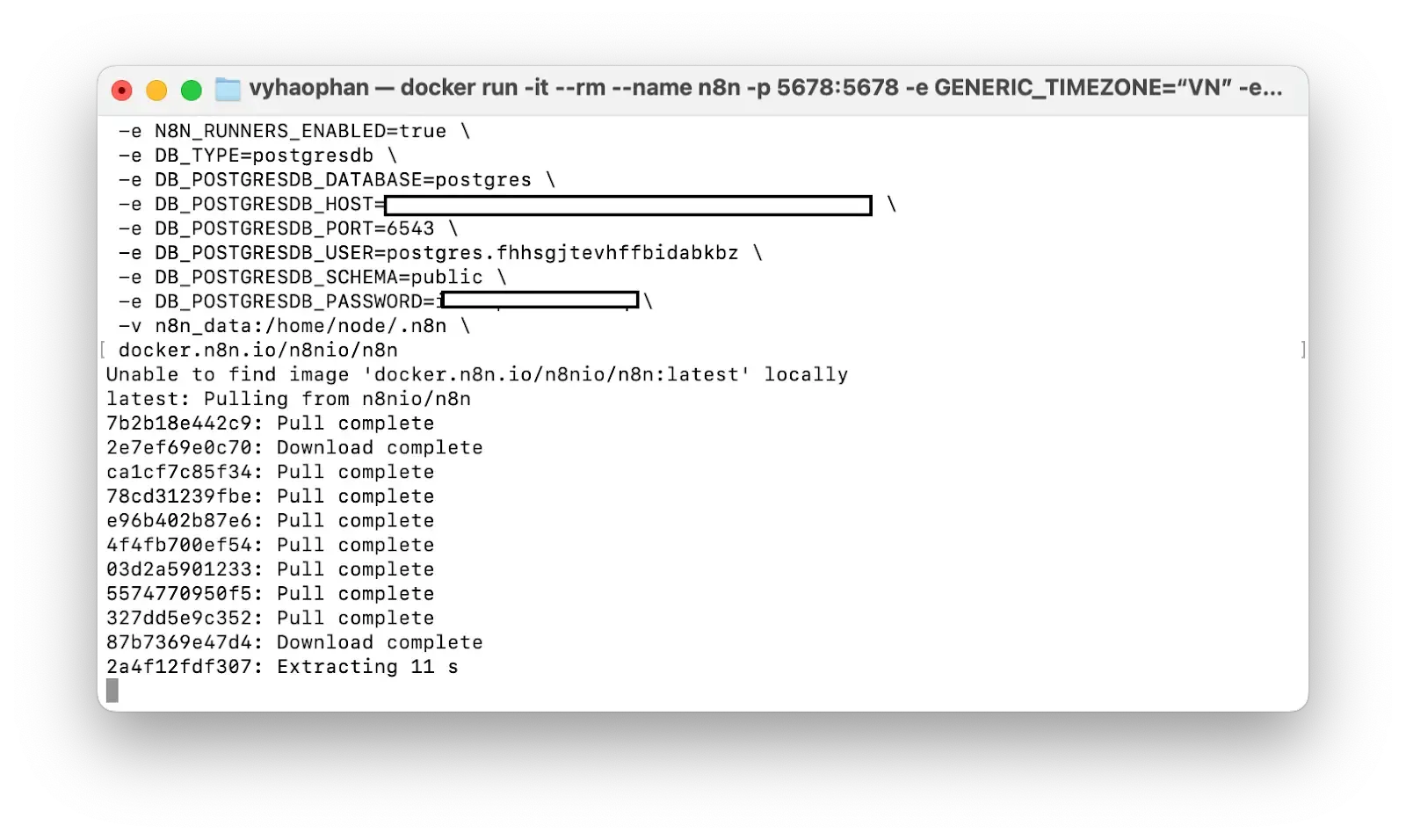
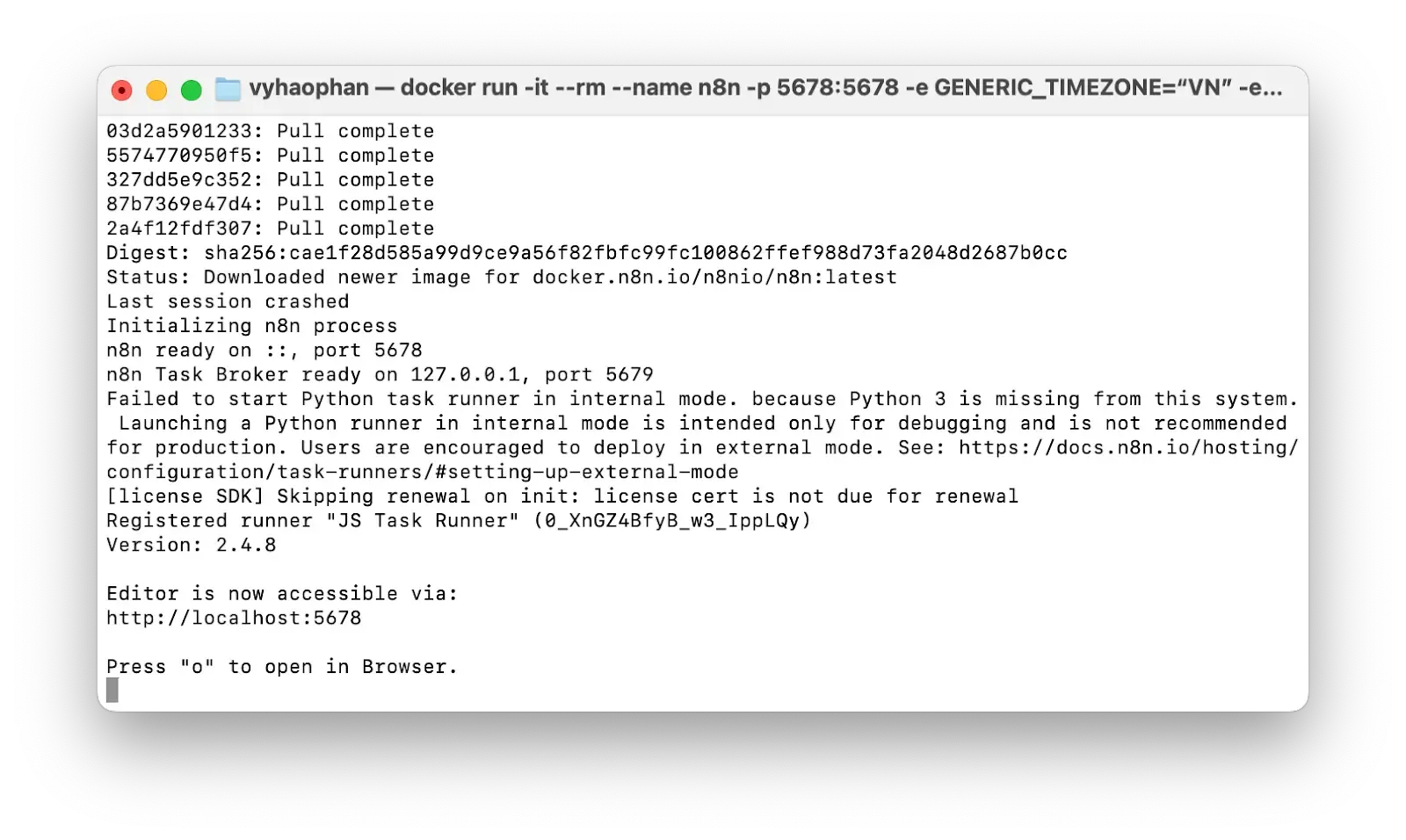
This is the status of completion. There is also an instruction on how to open the n8n editor.
Run the command persistently with Docker compose
In terms of running n8n in a production environment, using Docker Compose with PostgreSQL is the recommended best practice for persistent, multi-service applications like n8n. Docker Compose allows you to define the entire service configuration (including environment variables, ports, volumes, and restart policies) in a single YAML file, ensuring that your n8n instance starts up automatically and is easy to manage. PostgreSQL ensures that there is a database which stores all your local data consistently.
This method also makes it easier to add supporting services later, such as a dedicated PostgreSQL database, without complex command-line arguments.
Create a docker-compose.yml file
Open your Terminal and navigate to the ~/n8n-data folder you created earlier, or create a new dedicated folder for your Compose files.
cd ~/n8n-data
touch docker-compose.yml
Now, open docker-compose.yml in a text editor (like Visual Studio Code or Nano) and paste the following content:
volumes:
  n8n_data:
  traefik_data:
services:
  n8n:
    image: docker.n8n.io/n8nio/n8n
    container_name: n8n
    restart: always # Ensures n8n starts automatically when your Mac reboots
    ports:
      - "5678:5678"
    environment:
      - GENERIC_TIMEZONE=Asia/Ho_Chi_Minh # Replace with your timezone
      - TZ=Asia/Ho_Chi_Minh # Replace with your timezone
      # Security and performance settings
      - N8N_ENFORCE_SETTINGS_FILE_PERMISSIONS=true
      - N8N_RUNNERS_ENABLED=true
      - DB_TYPE: "postgresdb"
      - DB_POSTGRESDB_HOST=<POSTGRESDB_HOST>
      - DB_POSTGRESDB_PORT=<POSTGRESDB_PORT>
      - DB_POSTGRESDB_DATABASE=<POSTGRES_DATABASE>
      - DB_POSTGRESDB_USER=<POSTGRESDB_USER>
      - DB_POSTGRESDB_PASSWORD=<POSTGRESDB_PASSWORD>
    volumes:
      - ./n8n-data:/home/node/.n8n # Uses the 'data' subfolder in the current directory
Note:
- Remember to replace
Asia/Ho_Chi_Minhwith your correct timezone. - Replace the placeholders inside
<...>such as<POSTGRESDB_HOST>with your actual database PostgreSQL credentials.
Run n8n using Docker Compose
In the same directory where you saved the docker-compose.yml file, execute the following command in your Terminal:
docker-compose up -d
docker-compose up: Starts the services defined in the file.-d: Runs the containers in detached mode (in the background).
Docker Compose will pull the image and start the n8n container. Because you set restart: always, n8n will automatically launch every time Docker Desktop starts, providing much better persistence than the single docker run command.
You can now access n8n at http://localhost:5678/ as before.
Managing the service
-
To stop the running n8n container:
docker-compose down
- To check the logs:
docker-compose logs -f
Access n8n
Try to open the page http://localhost:5678/ and you will be prompted with an authentication page.
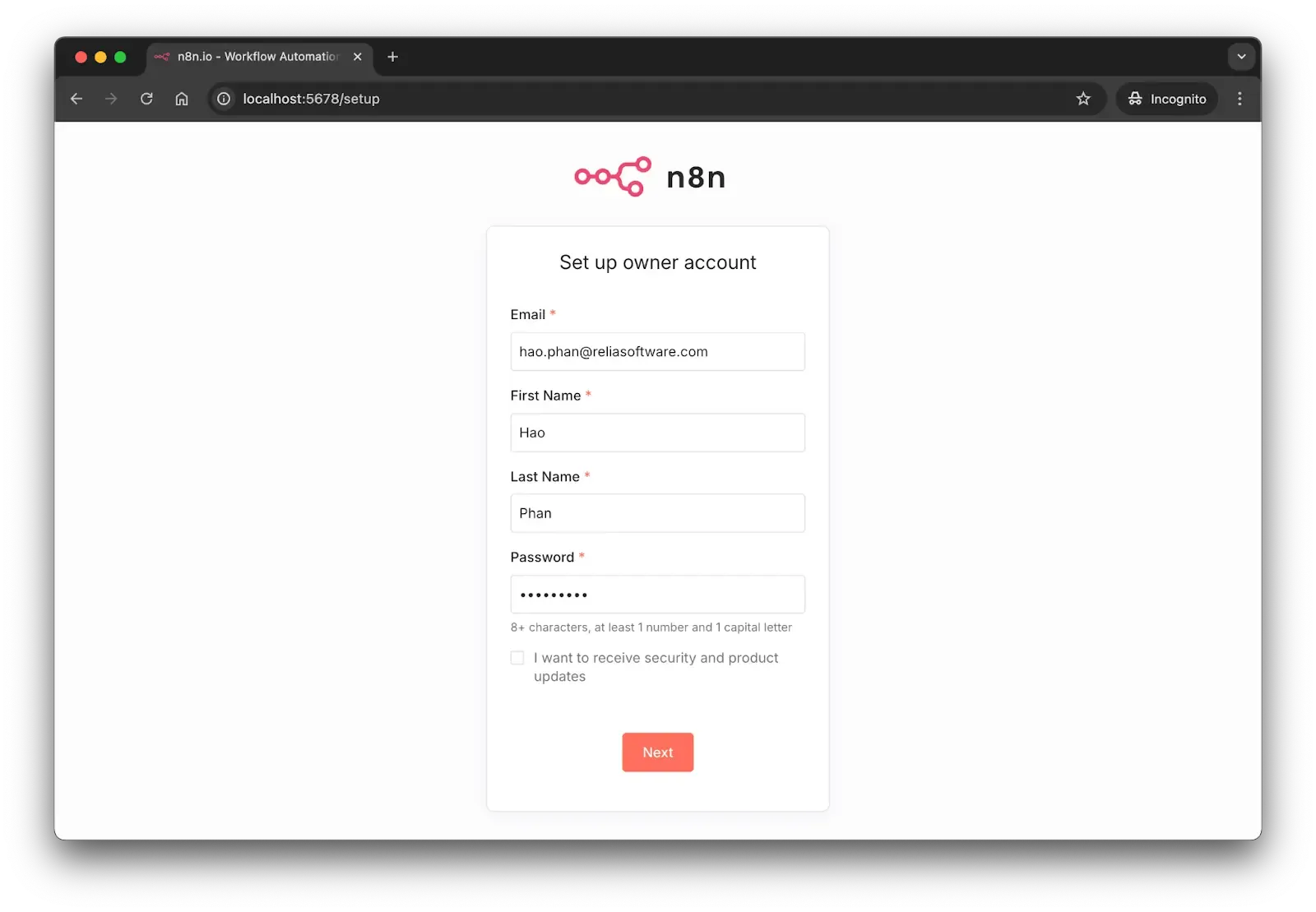
Since this is a self-hosted deployment with Docker in your machine, you need to set up an account for this machine and it will be used across all sessions in the machine.
Click the button Next. In the next page, you will have to provide more information about your background, including the role, the company, etc.
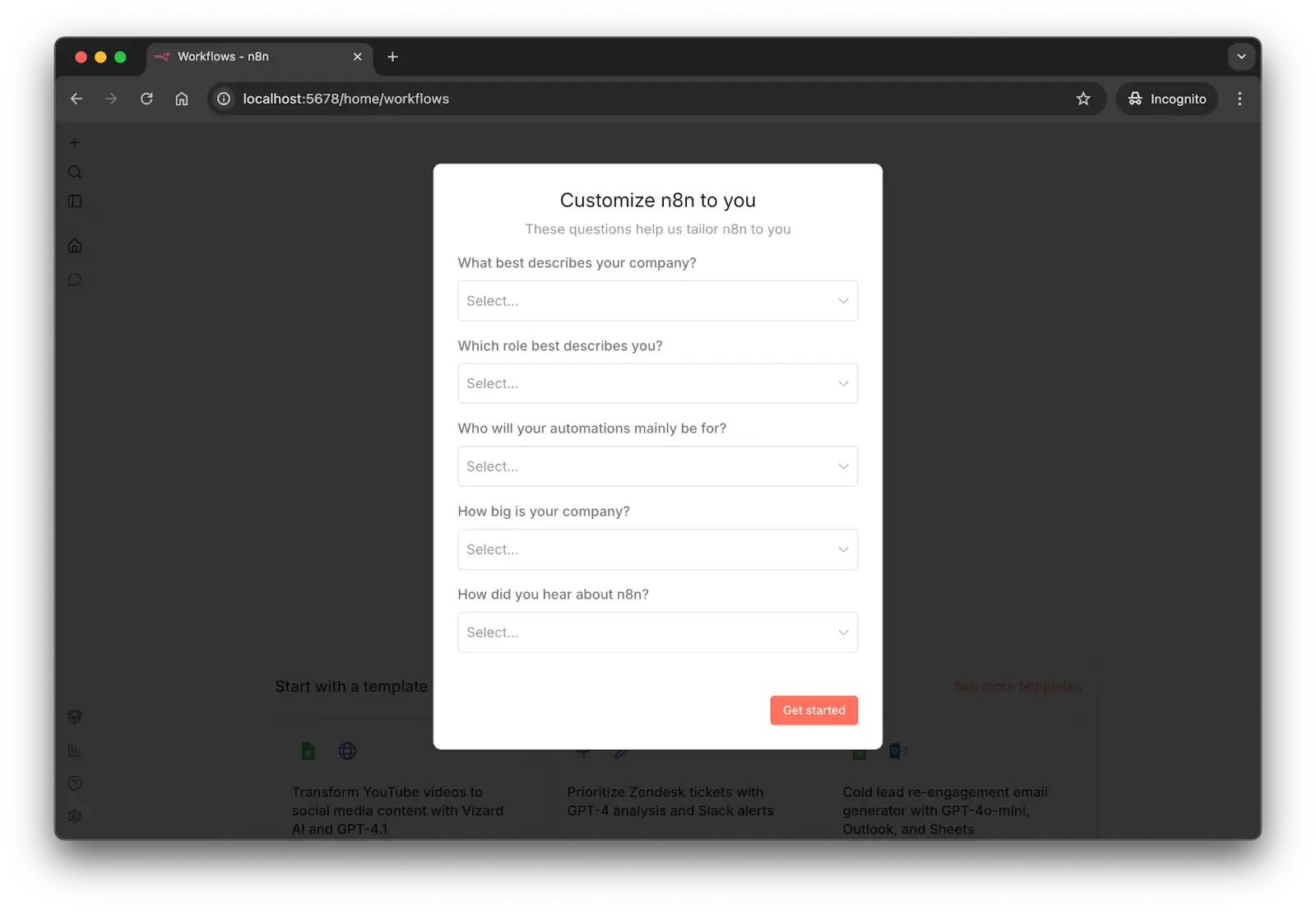
Click on the button “Get started”. In the next screen, please provide the email address to get the free license key.
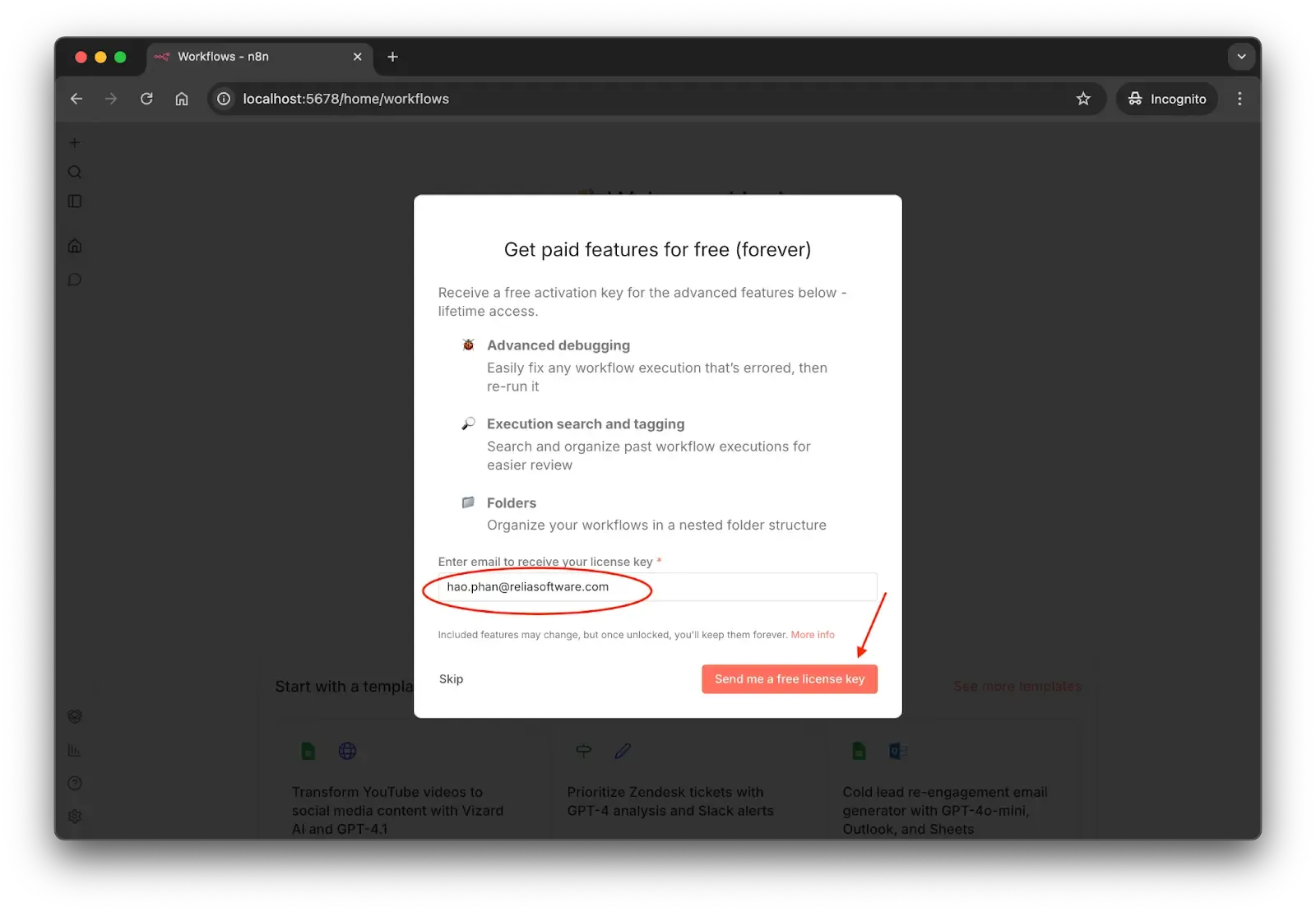
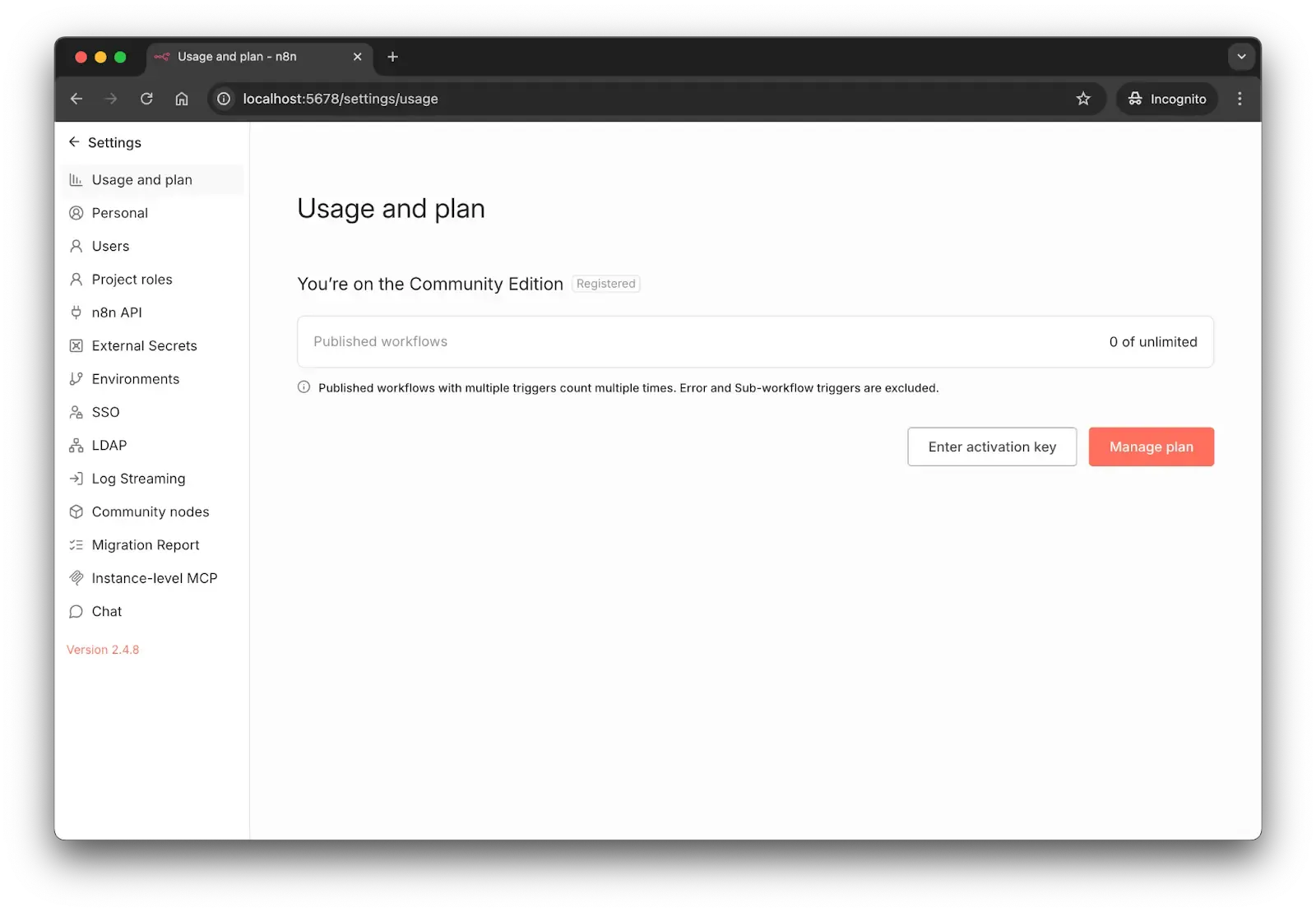
Please follow the instructions sent over the email. When navigating to http://localhost:5678/settings/usage, if you see the following message saying that you are on Community Edition, you have been successful.
Conclusion
You can go to the homepage http://localhost:5678/home/workflows and will see that there is no built workflow yet.
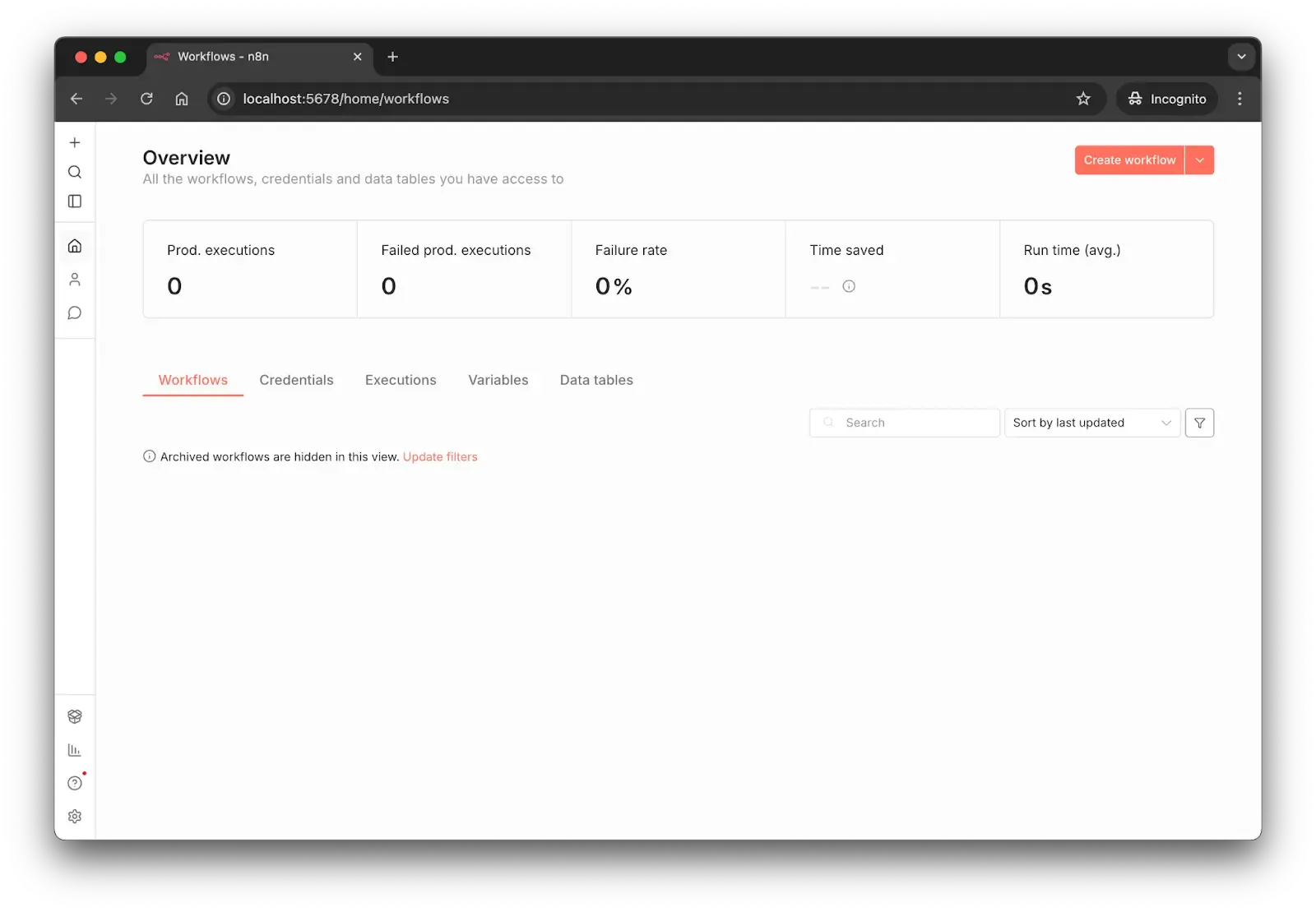
At this step, you have successfully established your first free n8n service which runs directly from your machine. It provides you the full functionalities without any payment.
In the upcoming blogs, you will be instructed how to set up different workflows for your use cases, ranging from checking emails, automatic reply, etc. to manage your whole life over the n8n workflows.
>>> Follow and Contact Relia Software for more information!

- development
- automation