


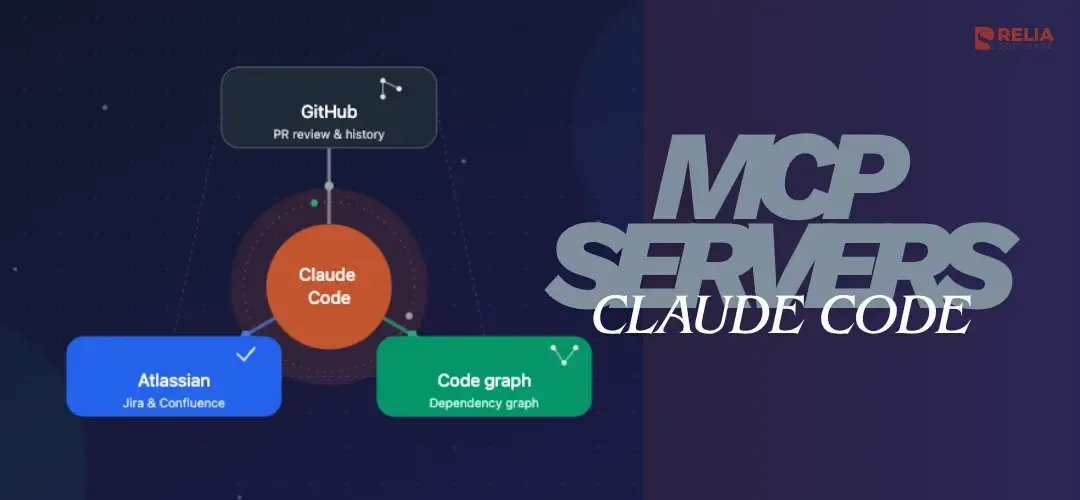
MCP (Model Context Protocol) is the open standard, released by Anthropic in late 2024, that lets Claude Code connect to tools and data outside its built-in file and search capabilities.
People often describe it as "USB for AI": one protocol, many tools, many clients. Instead of you copying context from Jira, Confluence, or GitHub into a prompt by hand, an MCP server exposes that system directly to Claude, and Claude decides when to use it.
This guide covers how MCP servers actually work inside Claude Code, how to install and scope them correctly, the security tradeoffs, and a real daily workflow built on the servers I actually use.
>> Explore further: How to Setup & Deploy Image Generation MCP in Claude Desktop?
What MCP Servers Actually Expose?
An MCP server gives Claude access to three kinds of things:
- Tools: executable actions Claude can invoke, like creating a GitHub issue, querying a database, or fetching a Jira ticket.
- Resources: data Claude can read for context, like a file tree, a database schema, or an API response.
- Prompts: reusable templates that show up as slash commands inside a Claude Code session.
Once a server is registered, Claude discovers what it offers automatically. You don't need to remember tool names or manually invoke a server. You describe the task, and Claude picks the right tool from whatever's connected.
I rarely tell Claude: “Use Jira MCP.” or “Use GitHub MCP.” Instead, I ask Claude to "implement ABC-123" and, without further instruction, it might read the Jira ticket, check linked documentation, analyze the relevant code, and start implementing.
How to Install MCP Servers to Claude Code?
Finding servers
Three sources cover most needs:
- Anthropic's official directory and the community-maintained
modelcontextprotocol/serversrepo, the canonical list of vetted servers. - Vendor-official servers: GitHub, Atlassian, Sentry, and Linear all now ship their own hosted MCP servers rather than relying on community packages. Prefer these where they exist; they're maintained by the people who own the API.
- Internal/company servers: anything your team builds in-house, like a code-intelligence or internal-docs server.
Don't install servers just because they exist. Every server you add expands Claude's tool list, and a bloated tool list makes tool selection slower and less accurate. Most experienced users land on three to six servers total.
Understanding transports
Claude Code talks to MCP servers over one of two main transports:
- stdio: the server runs as a local process on your machine (via
npx,pip, a binary, etc.). Best for tools needing direct local access like a filesystem, a local database socket, a browser. - http (or the older sse): the server is hosted remotely at a URL. This is the standard for cloud services like GitHub, Atlassian, Sentry, and Linear.
ssestill shows up on some vendor servers as a legacy transport;httpis the current default for new hosted servers.
Understanding scopes
Decide where a server's configuration lives and who else can see it:
| Scope | Stored in | Visible to |
local (default) | ~/.claude.json, under the current project | Only you, only this project |
project | .mcp.json in the project root | Anyone who clones the repo (commit this to git) |
user | ~/.claude.json, top-level mcpServers key | Only you, across all your projects |
If the same server name exists at more than one scope, local wins over project, which wins over user. Use project scope for anything your team should share (put it in .mcp.json and commit it), and user scope for personal tools you want available everywhere without re-adding per project.
Installing a server
One thing I appreciate about Claude Code is that MCP support is built directly into the tool. There is no need for complicated workarounds or external wrappers.
Most MCP servers can be installed through Claude Code's MCP management commands. The exact installation commands vary depending on the server, but the workflow is generally straightforward:
$ claude mcp add <server-name>In practice that placeholder gets filled in with the transport and scope flags from above, plus whatever the server needs to authenticate like a browser OAuth prompt, an API token, or an environment variable. The worked examples below, under each server I actually use, show the full command for each case.
Verifying and managing servers
To verify your installation, you can list available MCP servers:
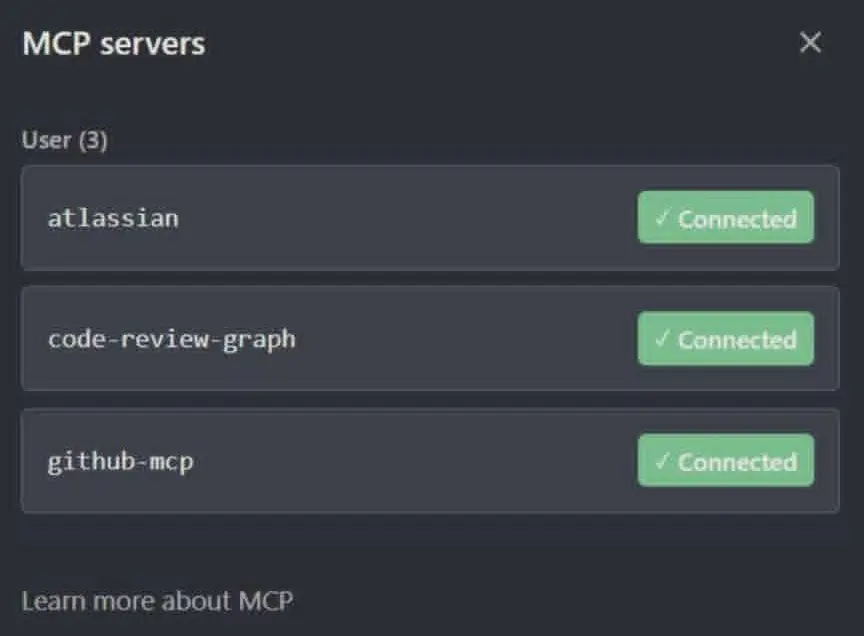
claude mcp listThis shows every registered server and a status: ✓ Connected, ! Needs authentication, ✗ Failed to connect, or ⏸ Pending approval (for project-scoped servers a teammate added that you haven't approved yet).
Inside a session, /mcp opens a panel to check status, authenticate, or reconnect without leaving the conversation.
Security Basics Before You Install Anything
An MCP server is a credential and a permission surface, and Claude processes whatever content it returns with the same trust as your own instructions. A few serious risks:
- Prompt injection: If an MCP tool returns content from an untrusted source (a public Jira comment, a webpage, an issue filed by an outsider), that content can contain instructions Claude may follow as if you'd typed them. Claude can't always tell the difference between your request and text embedded in tool output.
- Over-scoped tokens: A GitHub PAT with full repo/admin access or a database connection string with write permissions turns a misfire into real damage. Scope tokens to exactly the repos and permissions the task needs, and use read-only database roles wherever the work allows it.
- Supply-chain risk: Community npx-installed servers run arbitrary code on your machine. Prefer official, vendor-maintained servers, check that a package has recent commits before trusting it, and avoid installing servers you can't audit.
- Secrets in shared config.:
.mcp.jsongets committed to git for project scope, never put a raw token in it. Use environment variable expansion(${VAR})oruser/localscope for anything with a credential.
Note: Treat each server the way you'd treat any third-party integration with write access to your systems: least privilege, and skepticism about what content it hands back to the model.
My Current MCP Setup
Despite all the MCP servers available today, I intentionally keep my setup small. My daily workflow currently revolves around three MCP servers: Atlassian MCP, GitHub MCP, and Code Review Graph MCP.
I've experimented with other servers, but those three provide most of the value I need as a backend engineer. A lesson I learned quickly is that installing more MCP servers does not automatically improve Claude's effectiveness. A few high-quality MCPs connected to systems you actually use every day tend to provide more value than dozens of rarely used integrations.
Atlassian MCP (Jira and Confluence)
Before MCP, implementing a Jira ticket looked something like this:
- Open Jira.
- Read the ticket.
- Open Confluence.
- Read documentation.
- Copy requirements.
- Paste information into Claude.
There was nothing difficult about this process, but it involved a surprising amount of context switching, and every manual copy is a chance to drop something.
Here is the setup:
- Step 1: Ensure You Have Atlassian Access
You'll need access to your Atlassian cloud instance. You can simply ask your company for this.
- Step 2: Add the MCP Server:
Run this command:
claude mcp add --transport sse atlassian https://mcp.atlassian.com/v1/sseExpected Output: “✓ Successfully added MCP server 'atlassian'”
- Step 3: Authenticate with OAuth
The first time you use the Atlassian MCP server, you'll be prompted to authenticate:
- Claude Code will display a browser link or automatically open your browser;
- You'll see an Atlassian OAuth authorization page;
- Click "Accept" to grant Claude Code access to your Atlassian account;
- You'll be redirected back with a success message.
This is a one-time setup. Your authentication will be saved securely.
- Step 4: Verify Setup
Try these commands in Claude Code:
- "Show me my Jira tickets"
- "List Confluence spaces in keyloop"
- "Search for MCP documentation in Confluence"
- "What are the open issues assigned to me?"
One interesting lesson I've learned is that MCP servers provide capabilities, but behavior depends heavily on how Claude is instructed.
By default, Claude may only read the ticket I reference. However, I can teach Claude to perform a richer investigation through CLAUDE.md instructions, such as:
## When a Jira ticket is mentioned
1. Read the ticket.
2. Check linked tickets.
3. Check related Confluence pages.
4. Understand business requirements.
5. Then begin implementation.
This instruction creates a repeatable workflow across projects.

GitHub MCP
GitHub MCP is my most frequently used MCP server for reviewing pull requests and investigating why past changes were made.
Setup: use the official hosted server, not the older npm package:
- Step 1: Generate GitHub Personal Access Token
- Go to GitHub Settings > Developer settings > Personal access tokens
- Click "Generate new token (classic)"
- Give it a descriptive name (e.g., "Claude Code MCP")
- Set an expiration date (recommended: 90 days for security)
- Select the following scopes as you wish. Those will become available tools for Github MCP.
- Click "Generate token"
- Copy the token immediately, you won't be able to see it again!
- Step 2: Add the MCP Server
claude mcp add github-mcp npx @modelcontextprotocol/server-github --env GITHUB_PERSONAL_ACCESS_TOKEN=<your_github_token> --scope user
Expected Output: “✓ Successfully added MCP server 'github-mcp'”
- Step 3: Verify Setup
Try these commands in Claude Code:
- "List my GitHub repositories"
- "Show me recent commits in [repo-name]"
- "What are my open pull requests?"
Before GitHub MCP, reviewing a pull request with AI assistance typically required:
- Exporting diffs,
- Copying code snippets,
- Sharing review discussions,
- Providing additional context.
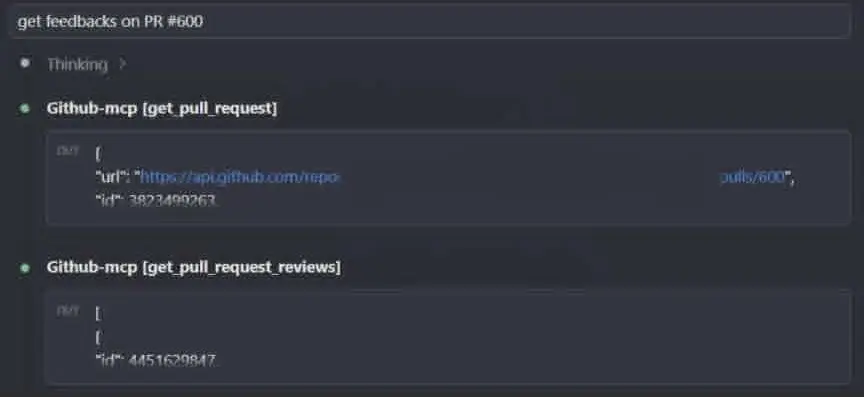
With GitHub MCP, Claude can retrieve much of that information directly. A typical prompt looks like this: “Review PR #600”.
Claude can then:
- Fetch changed files
- Read commit history
- Inspect existing comments
- Analyze implementation decisions
This creates a much richer review experience. In my experience, Claude's feedback becomes more useful because it can see the broader context around the change. Rather than reviewing isolated code snippets, it reviews the pull request as a complete unit of work.
Another use case I frequently rely on is repository exploration. When investigating older implementations or understanding why certain architectural decisions were made, Claude can inspect commits and repository history much faster than manually browsing GitHub.
Code Review Graph MCP
The most unique MCP server I use is a local tool called Code Review Graph MCP. Unlike Atlassian or GitHub MCP, Code Review Graph server is not primarily connected to an external SaaS platform. Instead, it exposes indexed knowledge about the codebase itself. You can download and set up this code-review-graph MCP via commands:
pip install code-review-graphcode-review-graph install # auto-detects and configures Claude Code and other MCP clientscode-review-graph build # parses the codebase and builds the graphSpecifically, Code Review Graph MCP provides: Dependency graphs, Call graphs and Lightweight code indexing.
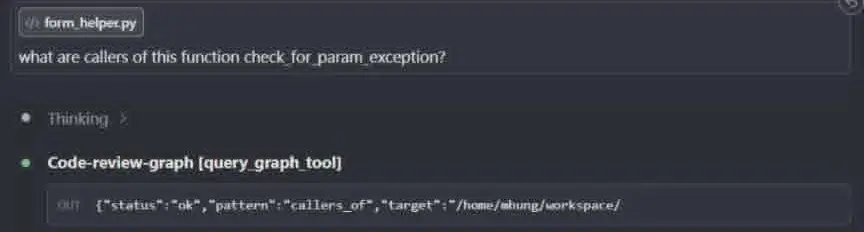
At first, I wasn't sure how valuable this would be because Claude Code already includes tools like: Read, Grep, Search. However, I eventually realized that some engineering questions are not search problems. They're relationship problems. Suppose I want to answer a question like “Trace this API endpoint to OpenSearch indexing.”
A traditional approach might involve:
Search -> Read file -> Search -> Read file -> Search -> Read fileWith Code Review Graph MCP available, Claude can instead reason about existing relationships that have already been indexed. Conceptually, the workflow looks like this:
Repository -> Dependency Graph -> Call Graph -> MCP Server -> Claude CodeOne thing I've noticed repeatedly is that Claude sometimes chooses the graph MCP instead of relying entirely on Grep. When the question involves architecture, dependencies, or execution flow, code-review graph can often provide faster answers than text search.
This was one of the first moments where MCP felt like more than just tool access. It felt like providing Claude with a higher-level understanding of the system.
Other MCP Servers Worth Knowing
I don't run these, but they come up constantly in other engineers' setups, and it's worth knowing what they're for even if you stay lean:
| Server | Best for |
| Context7 | Live, version-aware library documentation to cut down hallucinated API signatures |
| Playwright | Real browser automation so Claude can verify its own UI changes |
| Postgres | Schema reading and query analysis (use a read-only role) |
| Sentry | Pulling production error traces and stack context into a session |
| Linear | Ticket workflows, similar role to Atlassian MCP for Linear-based teams |
| Slack | Posting async status updates and reading channel context |
If you're starting from zero, GitHub is usually the single highest-value addition, followed by whichever ticketing system your team actually uses.
A Real Claude Code Workflow: From Jira Ticket to Pull Request
One workflow I use regularly today looks like this:
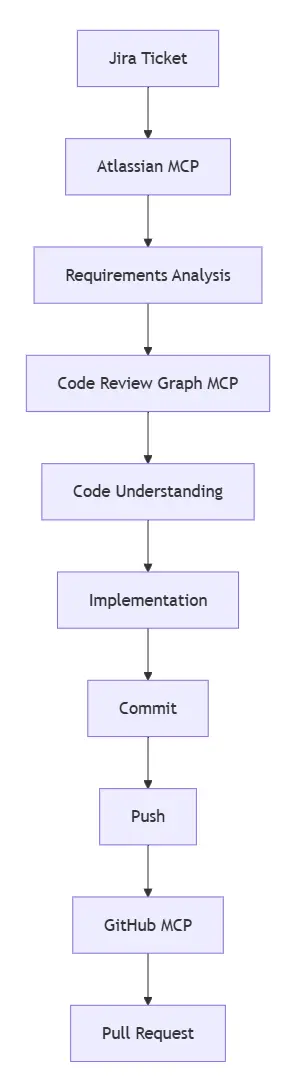
- I write only: "Implement ABC-123."
- Claude reads the ticket via Atlassian MCP and any linked Confluence docs.
- Claude traces the relevant code paths via code-review-graph instead of blind search.
- Claude implements the change.
- Claude commits and pushes.
- Claude opens a pull request via GitHub MCP, linking the ticket.
>> Read more about MCP:
- How to Build an MCP Server and Integrate it with a React App?
- How to Implement Golang MCP? Code Examples & Best Practices
Final Thoughts
If you're considering MCP servers in Claude Code, my recommendations are fairly simple: Start with a small number of high-value integrations. For most developers, GitHub MCP is probably the easiest place to start. If your team relies heavily on Jira and Confluence, Atlassian MCP provides immediate value as well.
Don't focus solely on installing more MCP servers, you can spend time improving your CLAUDE.md workflows. The quality of instructions often has a larger impact than the number of available tools.
Most importantly, please think about context. The biggest benefit of MCP is not automation. It's eliminating the need for developers to constantly act as the bridge between systems.

- coding
- development
- automation